If you’re dealing with shadow or ghosting on your monitor, start simple: make sure the display is actually running at its native refresh rate, dial back the overdrive setting from “extreme” to something more reasonable, swap in a different cable or port, and run a motion test to see what you’re really looking at. Most of the time, what people call “shadowing” boils down to slow pixel response, overdrive cranked too high, or a mismatch between what the PC is sending and what the monitor expects.
Quick answer: Monitor ghosting is that faint trail or smear you see trailing behind moving objects. The fastest way to deal with it? Check that Windows is using the right refresh rate, back off from the most aggressive response-time setting, turn off any extra image processing that might be adding blur or halos, try a better cable or switch to DisplayPort if you can, and figure out whether the problem sticks with the monitor, the cable, or the computer. If you’re still seeing the same artifact during the monitor’s own self-test, you’re probably looking at a hardware limit or an actual defect rather than something you can fix in settings.
What ghosting or monitor shadowing actually means
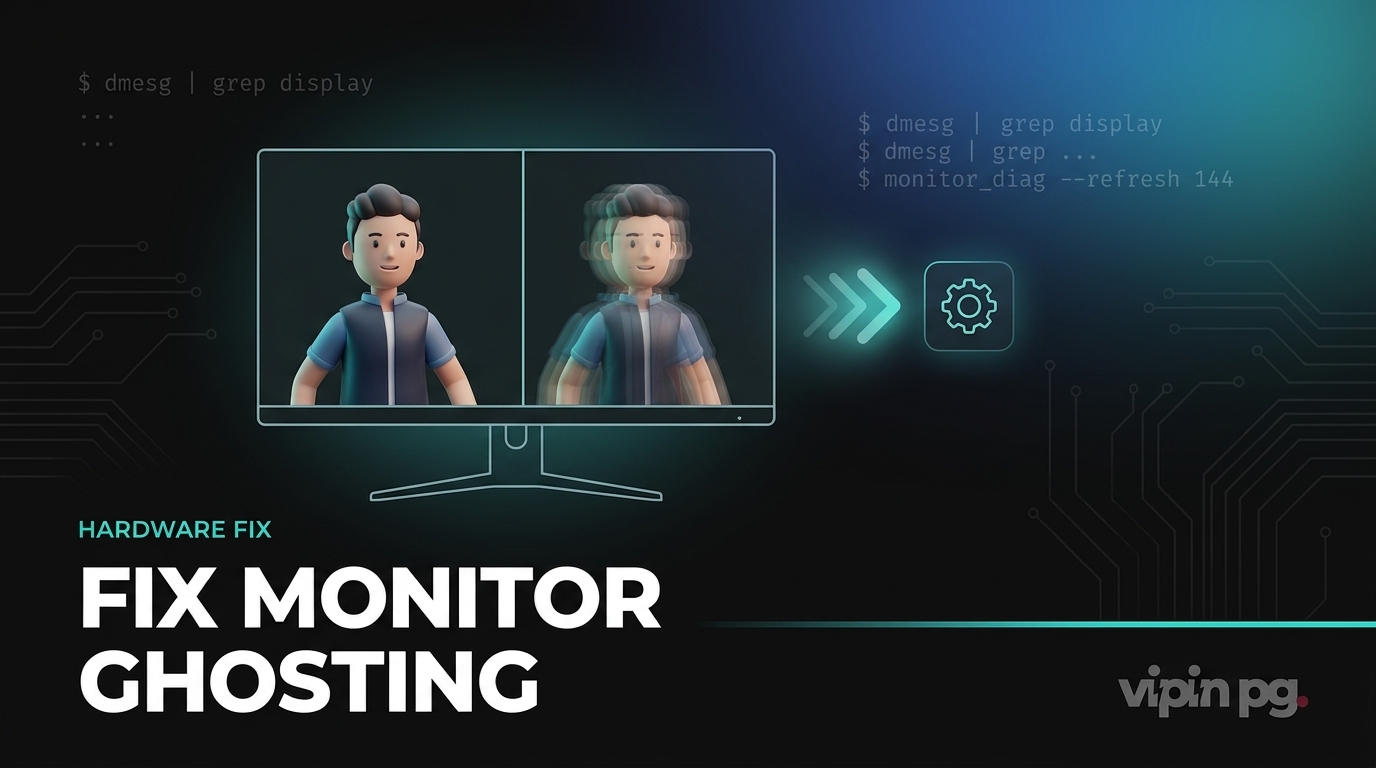
Ghosting is a motion thing: when something moves across the screen, it leaves a visible trail, a dark smear, a bright halo, or this weird doubled edge. It happens when pixels can’t switch cleanly between frames, or when the monitor’s overdrive circuit pushes too hard and creates what’s called inverse ghosting or overshoot instead of actually cleaning things up. TestUFO’s motion tests are pretty much the standard for checking this, and the Blur Busters explanations match what you’ll see on real gaming monitors.
This is why two monitors can both claim “1ms” on the box but look completely different in practice. The spec sheet doesn’t tell you how the panel behaves across different colors, refresh rates, or overdrive modes. Reviews and manufacturer docs show over and over that the “fastest” response setting can cut blur in one situation and create bright coronas or nasty trails in another.
How to tell what kind of problem you actually have
| What you see | Most likely cause | Best first fix |
|---|---|---|
| Dark trail behind moving objects | Slow pixel response / normal ghosting | Raise refresh rate, use moderate overdrive, test motion clarity |
| Bright or colored halo around moving edges | Overdrive too high / inverse ghosting | Drop response time from Fastest/Extreme to Normal/Fast |
| Blur only in one browser, app, or video player | Software rendering, scaling, browser, or playback issue | Test another app or browser before blaming the monitor |
| Problem appears after changing cable, adapter, or refresh rate | Signal path mismatch | Try another cable/port and confirm supported refresh-rate mode |
| Issue appears in built-in monitor diagnostics too | Panel limitation or hardware fault | Run self-test, factory reset, then consider warranty/service |
A quick way to separate these is to pull up a browser-based motion test like TestUFO ghosting test and see what changes when you tweak just one setting at a time. If the trail turns into a brighter halo when you switch response time from Normal to Extreme, that’s overshoot, not some mysterious hardware failure.
How to fix shadow or ghosting issues on your monitor
- Set the correct refresh rate first: In Windows, head to
Settings > System > Display > Advanced displayand make sure the monitor is actually running at the highest refresh rate it supports for your current resolution. A lot of “this monitor feels smeary” complaints turn out to be the display quietly running at 60Hz instead of 120Hz, 144Hz, or higher. Microsoft’s refresh-rate guide walks through the exact steps. - Move response time / overdrive down one notch: Most monitors call this
Response Time,Overdrive,AMA,Trace Free, or something similar. If it’s set toFastest,Extreme, orFaster, drop it to a middle setting likeNormalorFast. This is the single biggest fix for bright ghost trails and weird edge halos. ASUS and Blur Busters both explain the same thing: overdrive helps until it doesn’t. - Test with another cable or another port: If you’re using an older HDMI cable, a passive adapter, or a dock, you might not be getting the mode you think you’re getting. For gaming monitors especially, DisplayPort often makes it easier to hit the intended refresh rate and adaptive-sync mode. Even when the monitor “works,” the wrong cable or port combo can quietly cap your refresh rate or resolution.
- Turn off extra image-processing features temporarily: Disable things like motion smoothing, noise reduction, dynamic contrast, black stabilizer tricks, or unusual gaming presets while you’re testing. These can change how motion looks and make troubleshooting harder. Start from a neutral preset, then turn back on only what actually helps. Vendor troubleshooting flows and monitor diagnostic guides all recommend testing after a reset or neutral config.
- Use adaptive sync carefully: G-SYNC Compatible, FreeSync, or VRR usually improve motion smoothness, but ghosting behavior can still shift depending on frame rate and overdrive tuning. Some monitors work best with VRR on and moderate overdrive; others need the response-time mode lowered when frame rate drops. If ghosting only shows up in a certain FPS range, test VRR on and off before assuming the panel is broken. NVIDIA’s setup guidance and ASUS’ variable-overdrive explanation both point to this interaction.
- Factory reset the monitor and run built-in diagnostics: If the image still looks off, use the monitor’s OSD reset option. A lot of Dell troubleshooting docs also recommend running the built-in self-test or integrated diagnostics when you see clarity issues, distortion, or flicker. That helps answer the most important question: is the problem coming from the panel itself, or from the computer and signal path? Dell monitor diagnostics is a good example of this workflow.
What setting usually works best
On a lot of LCD gaming monitors, the sweet spot is not the maximum response-time mode. A middle overdrive preset often gives you the best balance between blur reduction and overshoot control. If the highest mode makes text or moving edges look brighter, greener, or more doubled, back it down right away. That’s classic inverse ghosting.
Check Windows, GPU, and game settings together
Don’t stop at the monitor menu. You also want Windows and the GPU control panel to agree on resolution and refresh rate. If the monitor supports 144Hz at 1080p but Windows is set to 60Hz, or the game is running borderless with a conflicting sync mode, the display can feel way worse than it should. The official Windows path for checking this is still Settings > System > Display > Advanced display.
If the issue only shows up in one game, cap your frame rate sensibly, test fullscreen and borderless modes separately, and try disabling the game’s motion blur. Software motion blur can be mistaken for monitor blur, especially when the monitor itself is already on a slower panel type.
Do not confuse ghosting with other screen problems
Not every shadowy-looking artifact is true monitor ghosting. Here’s the practical split:
- Ghosting: moving objects leave a faint trail
- Inverse ghosting: moving objects get bright halos or colored edges
- Screen tearing: the image looks horizontally split during motion
- Backlight bleed: bright patches show on dark screens, especially near edges
- Image retention: a previous image seems to linger when content changes
If what you’re seeing is really edge glow or bright leakage on dark backgrounds, that’s a different problem entirely. In that case, my screen bleeding guide is the more relevant fix path. If the strange visual effect only appears inside Chrome or a web app, it’s worth checking your browser before blaming the panel; my Chrome memory walkthrough and cookie-clearing steps cover the software side of display-like glitches that are actually app or browser problems.
When the panel itself is the limitation
Some monitors are just better at motion than others. VA panels, for example, can show darker smearing in certain transitions even when they look excellent for contrast and movie watching. IPS and OLED models often handle fast motion differently, and OLED’s extremely fast response times are one reason recent gaming OLEDs market blur and ghosting improvements so heavily. LG’s current gaming-monitor materials still lean on this response-time advantage as a core selling point.
That doesn’t mean every VA monitor is bad or every IPS monitor is perfect. It means some amount of panel-character behavior is normal, especially if your monitor is older, budget-oriented, or using aggressive marketing specs. If you can reduce the problem but not eliminate it entirely, you may have reached the realistic limit of that panel rather than a fixable fault.
When to suspect a hardware fault
You should start thinking about service, replacement, or warranty support when the artifact appears in the monitor’s own diagnostics, shows up across multiple computers and cables, or suddenly became much worse on a monitor that previously looked normal. That’s when built-in self-test results matter more than Windows tweaks. Dell’s monitor troubleshooting guidance explicitly uses self-tests and built-in diagnostics to separate monitor faults from computer-side problems.
A full reset is still worth trying once before you escalate. Some users also get temporary improvement after completely power-cycling the monitor, disconnecting cables, and clearing residual power before reconnecting. That’s not magic; it’s just a clean reset of the display electronics and signal negotiation.
A practical troubleshooting order that saves time
- Set the correct refresh rate in Windows.
- Use the monitor’s native resolution.
- Change overdrive from Extreme/Fastest to Normal/Fast.
- Test with TestUFO ghosting test.
- Try another cable and another port.
- Disable extra monitor processing features.
- Toggle VRR / G-SYNC / FreeSync and retest.
- Factory reset the monitor.
- Run the monitor self-test or built-in diagnostics.
- If the issue survives all of that on multiple devices, treat it as a hardware issue.
If the symptom appears during startup rather than normal desktop use, or the whole device has broader instability beyond the display, a system-level issue may be in play. In that narrower case, my Chromebook repair-loop guide is the better path for boot-related display confusion rather than pure monitor ghosting.
Final Thoughts
To fix shadow or ghosting issues on your monitor, don’t chase random settings. Work in order: confirm refresh rate, lower overdrive one step, test with a proper cable, remove extra processing, and then use built-in diagnostics to decide whether the issue is coming from the panel or from the PC. Most of the time, the real fix is a sensible response-time setting rather than the most aggressive one. If the artifact remains visible in self-test mode across different systems, you’re no longer dealing with a software tweak problem; you’re dealing with the monitor itself.