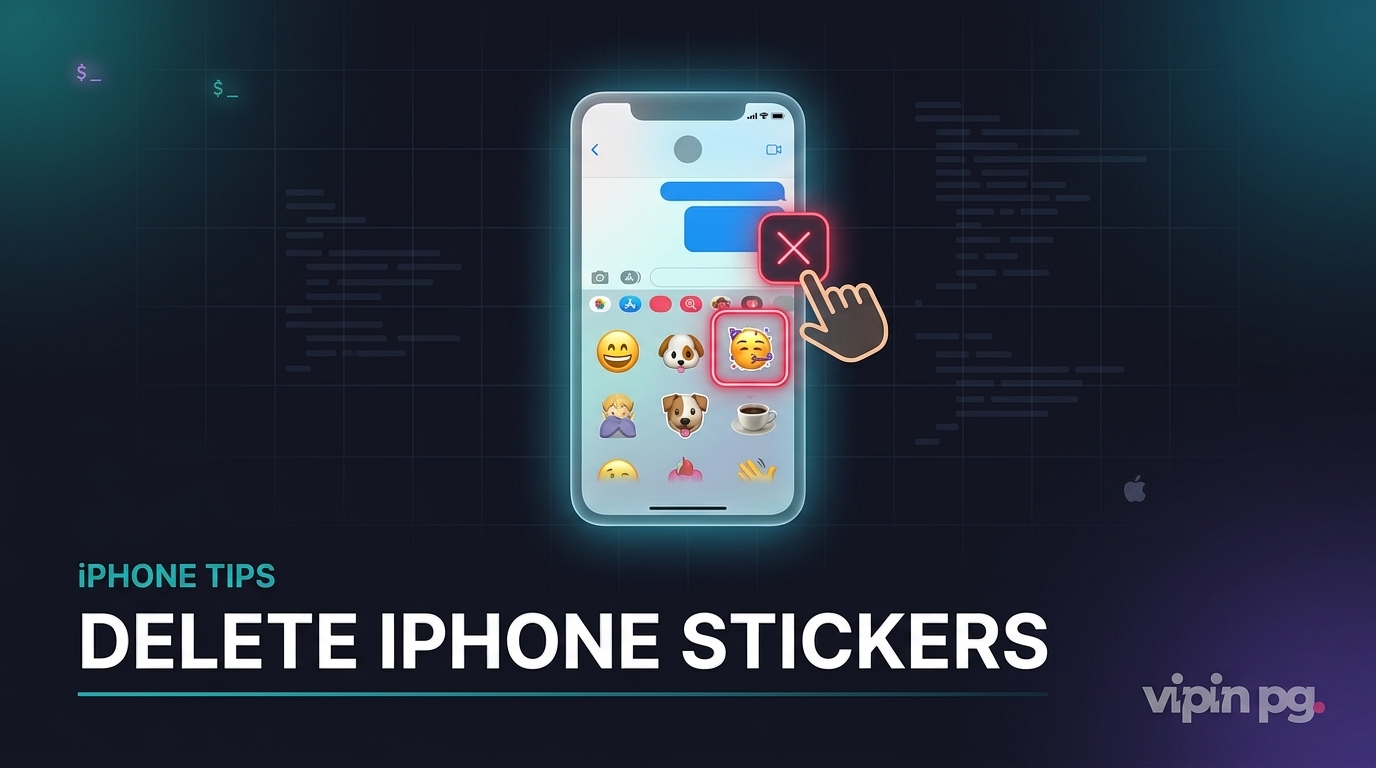
If you need to delete stickers on iPhone, the exact method depends on where the sticker is stored: on a message bubble in Messages, inside your saved sticker collection, or in a photo you are editing with Markup. Apple handles those three cases differently, which is why many people tap around and still cannot find the delete option. This guide follows the supplied article brief and focuses on the fastest working methods.
Quick Answer: To remove a sticker placed on a message, open the conversation in Messages, touch and hold the message bubble, tap Sticker Details, swipe left on the sticker, and tap Delete. To remove a saved custom sticker, open your stickers list, touch and hold the sticker, then choose the remove option if it appears. To delete a sticker while editing a photo, go to Photos > Edit > Markup > Add Sticker, touch and hold the sticker, and tap Remove.
The most reliable source here is Apple’s own guidance. Apple specifically documents one deletion path for stickers attached to message bubbles and another for stickers used in Markup while editing a photo. A separate Messages management screen can also be used to remove sticker apps or packs from the drawer if your issue is clutter rather than one specific sticker.
When “delete sticker” means three different things
Before you start, make sure you are deleting the right thing. On iPhone, people usually mean one of these:
- A sticker reaction on a text message — a sticker placed on top of a message bubble in Messages.
- A saved sticker from your sticker tray — usually a custom photo sticker, Live Sticker, or sticker from an app pack.
- A sticker added while editing a photo — inserted through Markup while modifying an image.
If you choose the wrong path, the delete option often does not show up at all. Apple’s Messages guide covers the message-bubble method, while Apple’s Photos guide covers removing a sticker from Markup. MacRumors’ walkthrough of the Messages sticker drawer is also useful if you want to manage whole sticker apps instead of one sticker at a time.
How to delete stickers on iPhone in Messages
This is the method you want when a sticker is sitting on top of a message bubble in an iMessage conversation. It is the most commonly missed workflow because the delete option is hidden inside Sticker Details rather than the normal message menu. Apple documents this exact path in its Messages sticker guide.
- Open Messages: Go to the conversation that contains the sticker.
- Touch and hold the message bubble: Do not tap the sticker once and let go. Press and hold the message the sticker is attached to.
- Tap Sticker Details: This opens a list of stickers applied to that message.
- Swipe left on the sticker: The delete control appears.
- Tap Delete: The sticker is removed from that message.
That swipe-left step is the one most people miss. Apple’s own wording is: touch and hold the message bubble, tap Sticker Details, swipe left on the sticker, then tap Delete. AppleInsider describes the same workflow for iOS 17 sticker reactions, which lines up with Apple’s official instructions.
What if Sticker Details does not appear?
If you do not see Sticker Details, check whether the item is actually a sticker placed on a message bubble. A regular emoji, Tapback, GIF, or image attachment follows a different menu path. The Sticker Details option is specific to stickers attached to a message in Messages.
How to delete saved custom stickers from your iPhone
If the sticker is not attached to a message but keeps showing up in your sticker tray or emoji keyboard, you are usually dealing with a saved sticker rather than a message reaction. Apple’s photo-sticker guide confirms that stickers you create can sync across your Apple devices when you use the same Apple Account, which is why they may reappear on iPhone, iPad, or Mac.
- Open Messages: Start or open any conversation.
- Open the stickers interface: Tap the + button, then choose Stickers, or open the sticker area from the keyboard if it is already visible.
- Find the sticker you want removed: Look in your recent or saved stickers section.
- Touch and hold the sticker: If your iOS version shows a remove option, tap it.
Apple’s public docs are clearer about deleting a sticker from Markup and deleting a sticker attached to a message than they are about every variation of the sticker tray UI, which has shifted over iOS releases. Recent community guidance on Apple Discussions and recent practitioner writeups both point to long-press removal from the sticker list, while MacRumors documents how to remove entire sticker apps from the Messages drawer. That makes the practical rule simple: long-press for individual saved stickers, use the drawer management screen for sticker apps or packs.
How to remove sticker apps or sticker packs from Messages
If your goal is to clean up the sticker drawer, not delete one custom sticker, open a Messages conversation, open the app/sticker drawer, go to the management screen, and remove the sticker app there. MacRumors describes the path as opening the drawer, tapping Edit, and then using the delete control next to the sticker app.
| What you want to remove | Where to remove it | Typical action |
|---|---|---|
| Sticker placed on a text bubble | Messages conversation | Message bubble > Sticker Details > swipe left > Delete |
| Custom sticker saved to your tray | Stickers panel | Touch and hold the sticker, then remove it if the option appears |
| Sticker app or sticker pack | Messages drawer management screen | Edit the drawer and delete the sticker app |
| Sticker added during photo editing | Photos > Edit > Markup | Touch and hold the sticker, then tap Remove |
How to delete a sticker from a photo on iPhone
If you added a sticker while editing an image in Photos, use the Markup workflow instead of Messages. Apple’s photo sticker documentation gives a separate set of steps for this case.
- Open Photos: Find the image you edited.
- Tap Edit: Enter the image editor.
- Tap Markup: Open the Markup tools.
- Tap Add Sticker: This opens the sticker layer options.
- Touch and hold the sticker: Press on the sticker you want removed.
- Tap Remove: The sticker is deleted from the edit.
Apple also notes that stickers created from photos sync through iCloud to other signed-in Apple devices. That means deleting a sticker from the relevant sticker collection or workflow can affect where it appears elsewhere, not just on the one iPhone in your hand.
Pro Tip: If you know the sticker was added while editing a photo, do not waste time inside Messages. Go straight to Photos and remove it from Markup.
Why you sometimes cannot delete stickers on iPhone
There are a few common reasons the delete option does not appear:
- You are pressing the sticker instead of the message bubble. For message reactions, Apple wants you to press the bubble and open Sticker Details.
- You are in the wrong app. Markup stickers are removed in Photos, not Messages.
- You are trying to remove a sticker app, not a sticker. That requires the Messages drawer management screen.
- The interface changed after an iOS update. Apple has shifted sticker controls between iOS 17-era Messages changes and newer layouts, so long-press and drawer-edit paths matter more than memorizing icon positions.
That last point is why many tutorials conflict with each other. The underlying actions are consistent, but the visible entry point may change. Apple’s support pages remain the safest reference for the core workflows, while recent third-party guides help fill in the UI wording that users actually see.
What happens after you delete a sticker?
When you delete a sticker from Sticker Details in Messages, you are removing that sticker from that specific message. When you remove a sticker from Markup, you are removing it from the photo edit before finalizing that version. When you remove a sticker app or pack, you are cleaning up the Messages sticker drawer so that source no longer appears there. Apple also notes that photo-based stickers sync across devices with iCloud, so saved sticker behavior can extend beyond one device.
The easiest method for most people
For most readers, the easiest answer is this: if the sticker is on a text, use Sticker Details; if it is on a photo, use Markup; if it is in the tray, long-press or remove the sticker app from the drawer. That is faster than guessing through every menu in Messages. Apple’s official instructions back the first two paths directly, and recent Messages drawer guides back the app-management route.
Related iPhone and iPad guides
If you are already cleaning up your Messages or browser experience on Apple devices, these related posts may help: my guide on clearing cookies on iPad is useful when websites or sign-ins behave strangely, and my walkthrough for removing iPad split screen covers another common Apple UI problem that often feels harder than it should.
If your issue is more car-related than message-related, you may also want to read my article on disconnecting Apple CarPlay. And if you are troubleshooting broader Apple-device behavior, the site’s iOS section pairs well with these sticker steps because many of the same “hidden menu” patterns show up across Messages, Safari, and Settings.
Final Thoughts
Knowing how to delete stickers on iPhone gets much easier once you stop treating all stickers as the same thing. A sticker on a message bubble is deleted through Sticker Details. A sticker added to a photo is removed from Markup. A sticker pack or sticker app is managed from the Messages drawer. Use the right path for the right type of sticker, and the delete option stops feeling hidden.