If you want to turn off Private Browsing on an iPhone or iPad, the fix is usually quick: open Safari, switch out of the Private tab group, and return to your regular tabs. On current Apple devices, Private Browsing is a Safari mode that keeps visited pages out of history, avoids saving AutoFill data from that session, and adds extra anti-tracking protections, so the exact steps matter if you want to leave that mode cleanly.
There’s one important distinction before you start: turning off Private Browsing isn’t the same as disabling the feature completely. Apple clearly documents how to exit a private session on iPhone and iPad, and it also documents how to lock private tabs with Face ID, Touch ID, or a passcode. What Apple doesn’t expose as a simple Safari toggle is a dedicated “remove Private Browsing” switch for your own device.
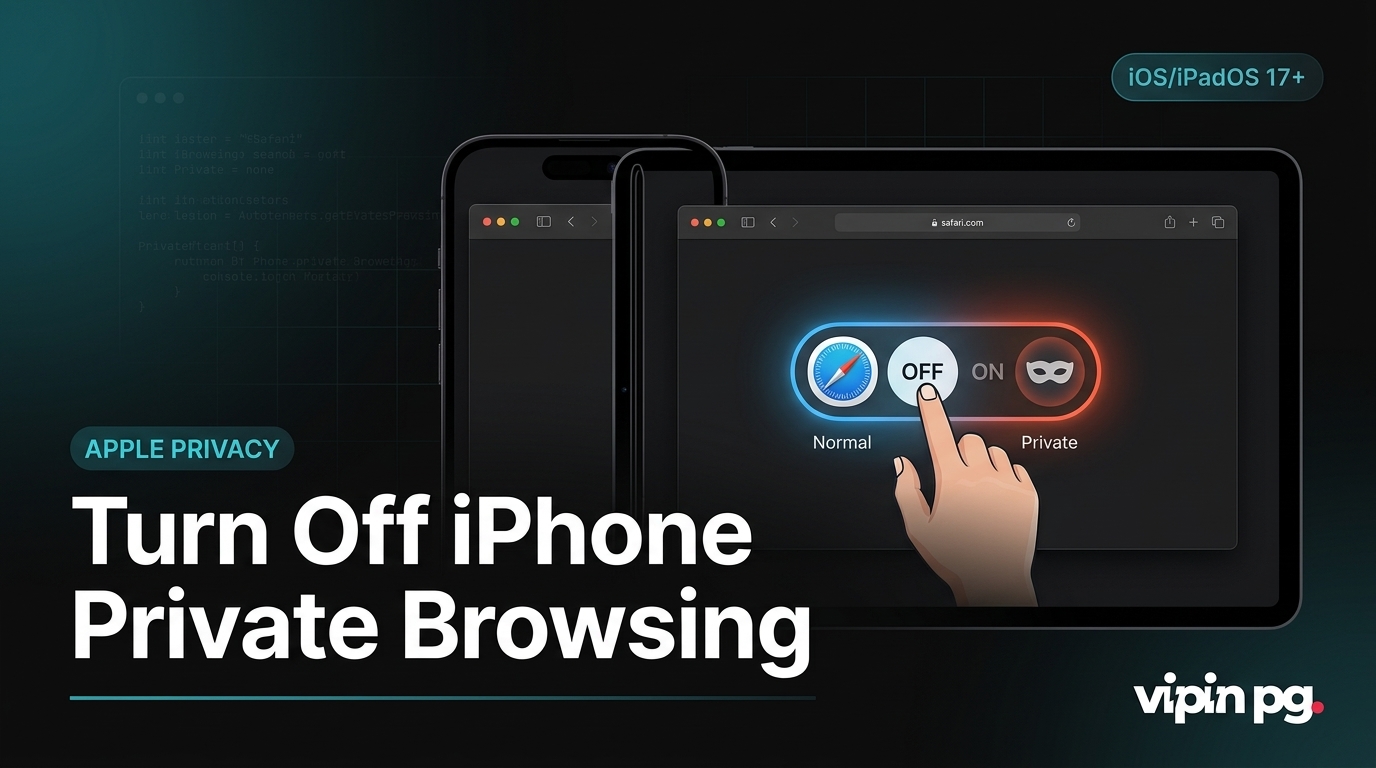
Quick Answer: On iPhone, tap the tabs button in Safari, open the tab-group selector, and switch from Private to your regular tab group or Start Page. On iPad, tap the tabs button or sidebar tab controls, then switch from Private to a normal tab group. If you want to stop someone from using Private Browsing repeatedly, use Screen Time web-content restrictions instead of looking for a Safari-only off switch.
What Private Browsing Does in Safari
Safari’s Private Browsing mode is designed for sessions you don’t want stored in normal browsing history. Apple says pages visited in Private Browsing don’t appear in history, private tabs aren’t shared across your other Apple devices, and Safari adds privacy protections such as blocking known trackers, removing some URL-based tracking, and defending against more advanced fingerprinting techniques. On iPhone and iPad, private sessions are also visually distinct because the address field appears darker than in regular browsing.
That matters because many people think they need to “delete” Private Browsing when all they really need to do is leave the Private tab group. The tabs you opened there can remain available inside that private section until you close them, and on newer Apple software they may also lock automatically when Safari isn’t in the foreground or when the device locks.
How to Turn Off Private Browsing on iPhone
On iPhone, the goal is to switch away from the Private tab group and return to your normal browsing session. Apple’s current iPhone support flow is straightforward.
- Open Safari: Launch the Safari app on your iPhone.
- Tap the tabs button: Use the tab-switcher button at the bottom or top of the screen, depending on your Safari layout.
- Open the tab-group selector: If Safari is in Private Browsing, you’ll see
Privateas the active tab group. - Switch to a normal tab group: Tap your regular tabs group, such as
[number] Tabs, or go back toStart Page. - Continue browsing normally: Once you leave the Private tab group, Safari returns to standard browsing mode.
Apple notes that when Private Browsing is active, the address bar appears dark. That visual cue disappears when you switch back to a normal tab group, which is the easiest confirmation that Private Browsing is off.
Do private tabs disappear automatically on iPhone?
No, not necessarily. Exiting Private Browsing doesn’t always mean every private tab is gone. In Apple’s documentation, private tabs can remain inside the Private tab group, and on devices with passcode protection they may lock when not in use. So if your goal is privacy from other people who use the same device, switching out of Private mode is only half the job; you may also want to close the private tabs themselves.
How to Turn Off Private Browsing on iPad
On iPad, Safari supports the same basic idea but the interface can look a little different because of the larger screen and sidebar layout. Apple’s iPad guidance says you turn Private Browsing off by opening Safari’s tab controls and switching from Private to a regular tab group or Start Page.
- Open Safari on your iPad: Go into the Safari app.
- Open the tab controls: Tap the tabs button or, in sidebar-style layouts, use the sidebar controls.
- Leave the Private group: Tap
[number] Tabs, another tab group, orStart Pageinstead ofPrivate. - Check the interface color: If Safari is no longer showing the darker private appearance, you’re back in regular browsing.
If Safari feels visually cluttered on your iPad, especially when you’re managing multiple windows or tab groups, you may also want to read my guide on fixing iPad split screen. It helps when Safari window behavior makes it seem like Private Browsing is stuck when it’s really a multitasking or multiple-window issue.
How to Close Private Tabs Completely
If you only switch back to normal tabs, the private session may still be sitting in the Private tab group. That’s fine if you’re the only one using the device and you simply wanted to resume regular browsing. But if you want a cleaner exit, close the private tabs too. Apple’s user guide makes clear that private tabs stay in the Private group until you close them, even though they’re handled separately from normal history and synced tabs.
- Open Safari and re-enter the Private tab group: Go back into the
Privatesection. - View all private tabs: Open the tab overview.
- Close the tabs you no longer want: Swipe them away or tap the close control on each one.
- Switch back to regular tabs: Return to your normal tab group after cleanup.
If you’re doing a broader privacy cleanup at the same time, my article on clearing cookies on iPad pairs well with this. Turning off Private Browsing only changes the browsing mode; it doesn’t replace actions like clearing cookies, website data, or history when those are actually what you need.
Can You Disable Private Browsing Completely?
For your own iPhone or iPad, Apple doesn’t provide a simple Safari setting that says “Disable Private Browsing.” What Apple does provide is a mix of privacy controls and parental-control tools: you can exit Private Browsing, you can require Face ID, Touch ID, or a passcode to unlock it, and you can use Screen Time web-content restrictions to limit browsing behavior more broadly.
In practice, that means there are two separate paths:
- For yourself: switch out of the Private tab group whenever you want to return to normal browsing.
- For a child’s or supervised device: use Screen Time and web-content restrictions if your goal is to stop Private Browsing from being easily available as an everyday option. Apple documents the Screen Time path under Content & Privacy Restrictions and Web Content controls.
How to restrict private-style browsing with Screen Time
If you’re setting up an iPhone or iPad for a child, this is the practical route Apple gives you. The current menu path Apple documents is:
- Open Settings: Go to
Settingson the iPhone or iPad. - Tap Screen Time: If you’re managing a child under Family settings, tap the child’s name.
- Open Content & Privacy Restrictions: Turn the feature on if it’s not already enabled.
- Go to web-content controls: Tap
App Store, Media, Web & Games, thenWeb Content. - Choose a restriction level: Use
Limit Adult Websitesor a stricter allowed-sites configuration, depending on how locked down you want the device to be.
Apple’s official documentation for parental controls and the iPhone user guide both point to this Screen Time path for web restrictions. That doesn’t read like a dedicated “Private Browsing off” switch, but it’s the supported Apple method for tightening browsing access on supervised devices.
Pro Tip: If your concern isn’t kids or device supervision, don’t overcomplicate this. Most people searching for how to turn off Private Browsing on iPhone and iPad only need to leave the Private tab group, not set up Screen Time restrictions.
How Locked Private Browsing Fits In
Some users land on the wrong fix because what they’re seeing isn’t a Private Browsing problem at all, but a Locked Private Browsing prompt. Apple added the option to require Face ID, Touch ID, or a passcode to unlock private tabs when Safari isn’t active or when the device locks. If that behavior is bothering you, the relevant setting is in Settings > Apps > Safari under Privacy & Security, where Apple lets you turn the unlock requirement on or off.
This is worth separating from the main topic because locking Private Browsing doesn’t disable it, and disabling the lock requirement doesn’t turn Private Browsing off. They’re different controls that solve different problems.
Common Problems When Private Browsing Won’t Turn Off
You keep returning to the Private tab group
This usually happens because Safari remembers the tab group you last used. Reopen the tab overview and deliberately select your regular tabs or Start Page. If there are still private tabs sitting in the Private group, close them so you don’t keep falling back into that workspace.
You’re mixing up Private tabs with Safari windows on iPad
On iPad, multiple Safari windows can make the app feel more confusing than it really is. If you have more than one Safari window open, you may think Private Browsing failed to turn off when you’re actually looking at another Safari window or another tab group. That’s one reason iPad Safari can feel trickier than iPhone Safari. If that sounds familiar, the related walkthrough on removing Safari split view can help you get the interface back under control.
You wanted to erase evidence, not only exit the mode
Turning off Private Browsing doesn’t clear all existing website data from Safari. If your real goal is a cleanup, you may need Apple’s history and website-data controls instead. Apple’s current Safari settings let you clear history and website data or remove website data separately through Safari settings.
That’s where a more targeted cleanup guide becomes useful. On the site, I already covered how to clear cookies on iPad, and for broader Apple troubleshooting you may also find the article on checking key iPhone settings useful when the real problem is a device setting rather than Safari itself.
Final Thoughts
Knowing how to turn off Private Browsing on iPhone and iPad is mostly about understanding Safari’s tab groups. On both devices, you turn it off by leaving the Private tab group and returning to your normal tabs. If you want stronger control than that, Apple’s current tools are Screen Time web-content restrictions for supervised devices and Locked Private Browsing settings for access control, not a separate universal “disable Private Browsing” switch. For the most current Apple references, see Apple’s iPhone guide, Apple’s iPad instructions, Apple’s lock setting, and Apple’s parental controls.