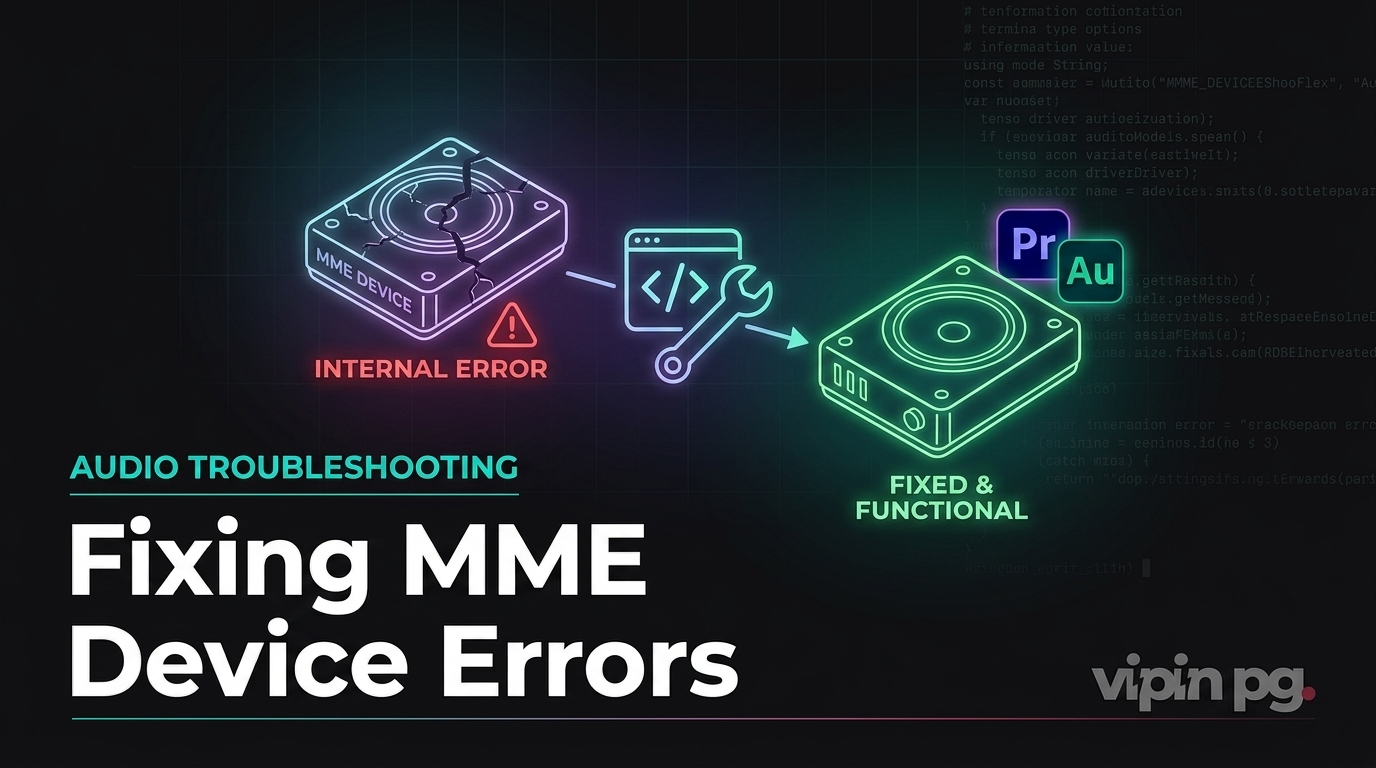
If Premiere Pro or Audition suddenly shows “MME Device Internal Error”, the problem usually comes down to how Adobe is trying to talk to your Windows audio hardware. Most of the time, the fastest fix is to change the Adobe audio input to No Input, double-check your Windows microphone and speaker permissions, then reopen the app and pick your working audio device again.
Quick fix: Open Premiere Pro or Audition, go to Edit > Preferences > Audio Hardware, set Default Input to No Input, keep your correct speaker or headphone as Default Output, click OK, then restart the Adobe app. If you record voiceovers or podcasts, come back afterward and select the microphone again once playback is stable.
This error is pretty common on Windows systems using USB microphones, Bluetooth headsets, HDMI audio, webcams with built-in mics, capture cards, audio interfaces, or devices that were unplugged while Adobe was still open. It can mess with playback, voice recording, waveform recording, timeline preview audio, and even the Audio Hardware preferences window itself.
What Does “MME Device Internal Error” Mean?
MME Device Internal Error means Premiere Pro or Audition tried to fire up a Windows audio device through the selected driver path and it didn’t work. MME stands for Multimedia Extensions, an older Windows audio driver model that many standard sound cards, USB microphones, Bluetooth devices, and consumer audio gear still use when talking to creative applications.
Adobe’s own audio hardware documentation explains that, on Windows, Premiere Pro can use Audio Hardware preferences to select device class, input, output, latency, sample rate, and connected hardware settings. Adobe also notes that ASIO drivers are usually used for professional audio cards, while MME is typically used for standard cards.
Audition follows the same basic pattern. Adobe’s Audition audio hardware guide explains that Windows users can configure input and output devices through the application’s audio hardware preferences, with ASIO generally preferred for professional interfaces and MME used for standard devices.
In plain terms, Adobe isn’t saying your entire PC audio system is broken. It’s saying the specific input or output device selected inside Premiere Pro or Audition isn’t responding the way the app expects.
Why Premiere Pro and Audition Show This Error
The error usually pops up when Adobe is pointed at an audio device that’s unavailable, locked, misconfigured, blocked by privacy settings, or returning a driver-level failure. That can happen even when YouTube, Spotify, or Windows system sounds still work fine.
Here are the most common causes:
- A disconnected input device: A USB microphone, webcam mic, capture card, Bluetooth headset, or audio interface was removed after Adobe saved it as the default input.
- Wrong input selected: Adobe is trying to use a microphone, stereo mix device, HDMI input, or virtual device that’s no longer working.
- Windows microphone privacy is blocking access: Windows 10 and Windows 11 can prevent desktop apps from accessing microphones unless microphone access is enabled in privacy settings. Microsoft documents this in its microphone permissions guide.
- Sample rate mismatch: Your Windows sound device and Adobe session may be trying to use different sample rates such as 44.1 kHz and 48 kHz.
- Bluetooth device switching: Bluetooth headsets often expose separate playback and hands-free communication modes, which can confuse editing apps.
- Driver conflict: Realtek, NVIDIA HDMI audio, webcam audio, virtual audio cables, ASIO wrappers, and USB interface drivers can sometimes compete for the same role.
- Exclusive device control: Another app may be using the mic or interface in a way that prevents Adobe from opening it cleanly.
If the issue started after a Windows update, Adobe update, driver update, or hardware change, focus first on Windows sound settings and the selected Adobe input/output device. For general Windows troubleshooting patterns, the same diagnostic mindset used in this Windows update fix guide applies here too: isolate the changed component, test the simplest path, then move deeper only if needed.
MME Device Internal Error Fix: Start With No Input
The most reliable first fix is to set Adobe’s input device to No Input. This works because many MME errors are triggered by the input side, not the output side. If Adobe can’t get a microphone, webcam mic, or virtual input going, playback may fail even though you only want to edit timeline audio.
Fix It in Premiere Pro
- Open Preferences: In Premiere Pro, go to Edit > Preferences > Audio Hardware.
- Check Device Class: On Windows, leave it on MME for normal speakers, headphones, USB mics, or built-in audio. Use ASIO only if you have a proper ASIO audio interface and driver.
- Set Default Input to No Input: Choose No Input from the Default Input dropdown.
- Set Default Output correctly: Choose the speaker, headphones, monitor audio, or interface output you actually want to hear.
- Click OK: Close Preferences and test playback in the timeline.
- Restart Premiere Pro: If the warning still appears, close Premiere Pro fully and reopen it.
Expected result: timeline playback should start producing sound again. If you only edit existing video and don’t record voiceovers directly into Premiere Pro, you can leave Default Input set to No Input permanently.
Fix It in Audition
- Open Audio Hardware: In Audition, go to Edit > Preferences > Audio Hardware.
- Change Default Input: Set the input to No Input first.
- Select a working output: Pick your headphones, speakers, or audio interface as Default Output.
- Apply the setting: Click OK, then play an existing audio file.
- Re-add your mic later: Once playback works, return to Audio Hardware and select your microphone again if you need recording.
Expected result: Audition should stop throwing the MME error during launch or playback. If the error returns only when you reselect the microphone, the mic device, privacy permission, sample rate, or driver is the real issue.
Check Windows Microphone Privacy Settings
If you need voice recording in Premiere Pro or Audition, don’t stop at “No Input.” That setting is a good workaround for playback, but it doesn’t repair microphone access. Windows can block apps from using microphones at the operating-system level, especially after privacy changes, major updates, or new device installs.
On Windows 11:
- Open Settings: Press
Windows + I. - Go to privacy: Open Privacy & security > Microphone.
- Enable Microphone access: Make sure Microphone access is turned on.
- Allow apps: Turn on Let apps access your microphone.
- Allow desktop apps: Scroll down and turn on Let desktop apps access your microphone.
- Reopen Adobe: Close and reopen Premiere Pro or Audition before testing again.
On Windows 10, the path is similar: Settings > Privacy > Microphone. Make sure microphone access is enabled globally and that desktop apps are allowed to access it.
Important: Premiere Pro and Audition may not appear as individual toggles in the Microsoft Store app list because they are desktop applications. The key setting is usually Let desktop apps access your microphone.
Confirm the Correct Windows Input and Output Devices
Before blaming Adobe, make sure Windows itself is using the right devices. This matters because Adobe may follow the system default, or it may show old devices that Windows still remembers.
- Open Sound settings: Go to Settings > System > Sound.
- Choose output: Under Output, select the speaker, headphones, monitor, or interface you want.
- Test output: Play any normal audio from Windows and confirm you can hear it.
- Choose input: Under Input, select the microphone or interface input you want.
- Test input level: Speak into the mic and check whether the input meter moves.
Microsoft’s Windows audio troubleshooting page recommends checking the selected speaker output, cable connections, volume controls, and audio hardware before moving into deeper driver troubleshooting.
If Windows can’t detect the mic or speaker properly, Adobe won’t be able to use it reliably either. Fix the device in Windows first, then return to Premiere Pro or Audition.
Match the Sample Rate in Windows and Adobe
Sample rate mismatches are a classic audio-app problem. Video projects usually use 48,000 Hz, while some music or consumer devices default to 44,100 Hz. Many devices handle switching automatically, but not all drivers do it cleanly.
To check your Windows sample rate:
- Open the classic sound panel: Press
Windows + R, typemmsys.cpl, and press Enter. - Check playback: On the Playback tab, select your output device and click Properties.
- Open Advanced: Go to the Advanced tab.
- Set a standard format: Choose 24 bit, 48000 Hz or 16 bit, 48000 Hz if available.
- Check recording: Repeat the same process under the Recording tab for your microphone or interface input.
- Restart Adobe: Close and reopen Premiere Pro or Audition.
For video editing, 48 kHz is usually the safest starting point. If your device doesn’t support 48 kHz, choose the closest stable option and keep both Windows input and output consistent.
Switch Between MME, ASIO, and WASAPI Carefully
When you see Device Class options in Adobe apps, it’s tempting to switch randomly until the error disappears. That can work for quick testing, but it’s better to understand what each option means.
| Device Class | Best For | When to Use It | Common Issue |
|---|---|---|---|
| MME | Standard Windows audio devices | Built-in speakers, Realtek audio, HDMI audio, USB mics, webcams, Bluetooth devices | Can fail when an input device disappears or Windows blocks mic access |
| ASIO | Professional audio interfaces | Focusrite, PreSonus, Steinberg, Audient, RME, MOTU, and similar interfaces with native ASIO drivers | May not expose normal Windows speakers or Bluetooth devices |
| WASAPI | Modern Windows audio paths where available | Useful in apps or configurations that support it for lower-latency Windows audio | Availability depends on the Adobe app/version and device path |
Sweetwater’s audio driver comparison explains the practical difference well: MME, WASAPI, and WDM route audio through Windows, while ASIO communicates more directly with the audio interface. That’s why ASIO is often better for recording and monitoring, but only when you’re using a real interface with a stable native driver.
If you’re using normal laptop speakers or a USB headset, start with MME. If you’re using a dedicated audio interface, install the manufacturer’s official ASIO driver and test ASIO instead.
Disable Problem Devices You Don’t Use
Windows machines often collect a long list of audio devices: monitor audio over HDMI, NVIDIA High Definition Audio, webcam microphones, virtual audio cables, Bluetooth hands-free devices, capture cards, and disconnected USB devices. Premiere Pro and Audition may try to fire up one of these if it was previously saved as the default.
To reduce confusion:
- Open Sound settings: Go to Settings > System > Sound.
- Open more settings: Scroll down and open More sound settings.
- Review playback devices: On the Playback tab, right-click unused outputs and choose Disable.
- Review recording devices: On the Recording tab, disable unused microphones, webcam mics, or virtual inputs you don’t need.
- Keep the real devices: Leave your actual editing headphones/speakers and microphone enabled.
Don’t disable devices blindly if you use them in OBS, Zoom, Teams, DAWs, or screen recording tools. The goal is to remove stale or unused devices that Adobe might accidentally grab.
If you regularly troubleshoot device conflicts, this same narrowing-down approach is useful beyond Adobe apps. The process is similar to testing one display setting at a time in this monitor ghosting guide: change one variable, test the result, then move to the next likely cause.
Restart Windows Audio Services
If the selected device looks correct but Adobe still throws the error, restart the Windows audio services. This can clear a stuck audio endpoint without rebooting the whole PC.
- Close Adobe apps: Exit Premiere Pro, Audition, Media Encoder, and any app using the mic.
- Open Services: Press
Windows + R, typeservices.msc, and press Enter. - Restart Windows Audio: Find Windows Audio, right-click it, and choose Restart.
- Restart Endpoint Builder: Find Windows Audio Endpoint Builder, right-click it, and choose Restart.
- Open Adobe again: Test Premiere Pro or Audition playback.
You can also reboot the computer, which restarts these services along with the device drivers. But restarting services is faster when you’re in the middle of an editing session and want to avoid losing your workspace state.
Update or Reinstall the Audio Driver
If the MME Device Internal Error returns after every reboot, the audio driver may be corrupted, outdated, or poorly matched to the current Windows build. Microsoft recommends using Device Manager to update audio drivers when Windows Update doesn’t install a newer one automatically, as covered in its audio driver update instructions.
Use this sequence:
- Open Device Manager: Press
Windows + Xand choose Device Manager. - Expand audio devices: Open Sound, video and game controllers.
- Update the driver: Right-click your audio device and choose Update driver.
- Search automatically: Let Windows search for a driver first.
- Check the manufacturer: For Realtek, Dell, HP, Lenovo, ASUS, Focusrite, PreSonus, or other specific hardware, also check the manufacturer’s support page.
- Restart: Reboot the PC before testing Adobe again.
If updating doesn’t help, you can uninstall the audio device from Device Manager and reboot so Windows redetects it. For professional interfaces, download the latest driver directly from the manufacturer instead of relying only on Windows Update.
Pro Tip: Avoid installing random “driver updater” tools for audio issues. They often create more instability than they solve. Use Windows Update, Device Manager, your PC manufacturer, or your audio interface manufacturer.
Special Fixes for Bluetooth Headsets, USB Mics, and Audio Interfaces
Different hardware types fail in different ways. Use the section below that matches your setup.
Bluetooth Headsets
Bluetooth headsets can expose two separate profiles: a higher-quality stereo playback profile and a lower-quality hands-free communication profile. When Adobe tries to use the headset as both microphone and speaker, Windows may switch profiles or fail to get the device going correctly.
- Use Bluetooth headphones for output only and set Adobe input to No Input unless you really need the headset mic.
- For recording, use a wired USB mic or audio interface instead of the Bluetooth headset mic.
- Remove and pair the headset again if Windows shows duplicate or stale headset entries.
- Keep your laptop close to the headset to avoid connection drops during editing.
USB Microphones and Webcams
USB microphones and webcams are common triggers because they can be unplugged, renamed by Windows, or blocked by privacy settings.
- Connect the USB mic before opening Premiere Pro or Audition.
- Avoid switching USB ports during an active project if the app has already saved that device.
- Check Windows microphone privacy settings after major Windows updates.
- Set the mic to 48 kHz in Windows if you’re recording for video.
Audio Interfaces
If you use a Focusrite, PreSonus, Steinberg, Behringer, Audient, MOTU, or similar interface, use the manufacturer’s native ASIO driver when possible. ASIO is usually more stable for low-latency recording and monitoring than generic Windows audio paths.
- Install the official interface driver before opening Adobe apps.
- Use the same sample rate in the interface control panel and Adobe preferences.
- Plug headphones or speakers into the interface if ASIO is selected.
- Use direct monitoring on the interface when recording vocals to avoid latency.
Reset Adobe Preferences if the Error Is Stuck
Sometimes the device is already fixed in Windows, but Adobe keeps loading a bad saved preference. In that case, reset the application preferences.
For Premiere Pro:
- Close Premiere Pro: Make sure it’s not running.
- Launch with reset: Hold Alt on Windows while launching Premiere Pro.
- Confirm reset: If prompted, confirm that you want to reset preferences.
- Reconfigure audio: Go back to Edit > Preferences > Audio Hardware and select stable devices.
For Audition:
- Close Audition: Exit the app fully.
- Launch with reset: Hold Shift while opening Audition to reset preferences when prompted.
- Set audio hardware again: Start with No Input and a known working output.
Resetting preferences can remove customized workspace, cache, and preference choices, so use it after you’ve already tested the easier device-level fixes.
What to Do If Audio Still Doesn’t Play
If you’ve tried No Input, privacy settings, Windows sound selection, sample rate, driver updates, and preference reset, the issue is likely outside the basic MME path. Work through this final checklist:
- Test another project: Create a new Premiere Pro project or open a different Audition file to rule out project corruption.
- Test another Windows account: A fresh user profile can reveal whether the problem is tied to your user preferences.
- Disconnect extra devices: Temporarily unplug capture cards, webcams, HDMI monitors, VR headsets, and virtual audio devices.
- Close communication apps: Exit Zoom, Teams, Discord, OBS, browsers, and screen recorders that may be holding the mic.
- Disable exclusive mode: In
mmsys.cpl, open the device Properties, go to Advanced, and test with exclusive mode options unchecked. - Try another output: Switch from Bluetooth to wired headphones or from HDMI monitor audio to built-in Realtek output.
- Reinstall Adobe app: Use Creative Cloud to uninstall and reinstall Premiere Pro or Audition if the issue is isolated to one Adobe app.
If other Windows apps also can’t record or play from the same device, fix Windows first. If Windows works perfectly and only one Adobe app fails, focus on Adobe preferences, cache, plugins, and app reinstall.
Best Settings to Prevent the Error from Coming Back
Once the MME Device Internal Error is fixed, spend two minutes making the setup less fragile. The goal is to give Adobe a predictable audio path every time it launches.
| Use Case | Recommended Adobe Input | Recommended Adobe Output | Driver Choice |
|---|---|---|---|
| Editing only, no recording | No Input | Main headphones or speakers | MME for standard devices |
| Voiceover with USB mic | USB microphone | Wired headphones or speakers | MME, 48 kHz preferred |
| Podcast or music recording | Audio interface input | Audio interface output | Native ASIO driver |
| Bluetooth listening only | No Input | Bluetooth stereo headphones | MME, but wired is safer |
| Screen recording or OBS workflow | Only the needed virtual/input device | Dedicated monitoring output | Depends on routing setup |
For the most stable editing workflow, avoid using one Bluetooth headset as both microphone and headphones inside Adobe. Use a dedicated mic and wired monitoring whenever possible. That small hardware choice prevents a surprising number of MME, latency, and distorted-audio problems.
If you often run into Windows file, device, or application errors while editing, it also helps to keep your system clean and predictable. For example, the same habit of simplifying the path and reducing variables shows up in this Windows file error walkthrough, where shortening the path solves a problem that initially looks more complicated than it is.
Final Thoughts
The best MME Device Internal Error fix for Premiere Pro and Audition is to start with the audio input, not the whole Adobe installation. Set Default Input to No Input, confirm your output device, restart the app, and then add your microphone back only after playback works.
If you record audio, check Windows microphone privacy, match your sample rate, and use the right driver model for your hardware. MME is fine for standard Windows devices, while ASIO is usually the better choice for proper audio interfaces. The key is not to keep switching settings randomly; isolate the failing device, make Adobe use a stable input/output pair, and then lock that setup in before your next edit.